VAMOS Studio
Status: Experimental. Studio is a local Panel application for exploring saved studies, viewing objective values, and inspecting candidate solutions. Its interface and ranking helpers are outside the stable VAMOS 1.x contract; see Stability and versioning.
See a real study
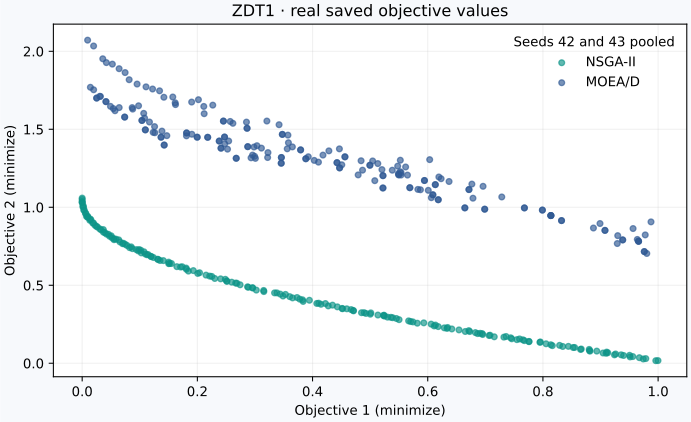
Real optimization output generated with VAMOS 1.0.0, not a Studio screenshot: ZDT1, NSGA-II and MOEA/D, seeds 42 and 43, population 100, NumPy backend, 10,000 evaluations per run. The two seeds are pooled for each algorithm. This is a walkthrough dataset, not evidence that one algorithm is better.
This guide targets VAMOS 1.5.0. Since VAMOS 1.1.0 the launcher serves the application and honors its study directory. Users of 1.0.2 should upgrade to obtain these fixes and the durable batch and comparison pages described here.
Prepare the same data
Install the published package, then download
prepare_studio_demo.py
using GitHub's Download raw file action. Run it from the folder containing
the downloaded script:
python prepare_studio_demo.py --output results/studio-demo
vamos study inspect results/studio-demo
vamos study summarize results/studio-demo
The script uses only the stable public API. It plans and executes 4 runs with
a total budget of 40,000 evaluations, then verifies that all four completed.
Choose a new output directory if that path already exists. In a repository
checkout, the script is at examples/journeys/prepare_studio_demo.py.
The two vamos study commands work independently of Studio. They inspect
persisted data without running the optimizers again. For a broader experiment,
follow the reproducible study guide.
To regenerate the figure above, install the analysis extra and add
--plot studio-study.svg to the script command, again choosing a fresh study
output directory. The figure plots the saved objective values without modifying
or filtering them.
Read the Results Explorer
With Studio running:
- Open Explore Results in the sidebar.
- Set Study directory or search folder to the study root, such as
results/studio-demo, or to a folder that contains studies, such asresults, and click Find studies. Choose the study under Study and click Load study. - Check the status: this example should say Loaded 4 runs, 2 fronts. A loading error means your study was not loaded. Synthetic demo fronts appear only after you click Load demo data, and are labelled as such.
- Inspect Pareto Fronts for the chosen Problem. Hover over points to
read
f1andf2; click a legend entry to hide or show an algorithm. Both ZDT1 objectives are minimized, so improvements move toward the lower left. - Change MCDM method or Top solutions per front to explore Solution Rankings. Ranks are calculated separately for each algorithm's pooled solutions; they are not ranks of algorithms or a statistical comparison, which the Statistical Comparison page provides.
Studio displays the saved objective vectors. A returned population can contain dominated points, and the plot title does not certify that every point is non-dominated or lies on the true Pareto front. See Understanding results for those distinctions.
The overlay shows the fronts of one problem at a time: two or three objectives as a scatter plot, more as parallel coordinates. Filters narrow the overlay and the ranking to the solutions that satisfy every constraint, or whose objectives lie inside the ranges you set with one slider per objective; the page reports how many solutions remain. Runs that stored no constraint values count every solution as feasible. Export ranking (CSV) downloads the ranking table shown on the page, filters included. Use the analysis workflow for controlled plots and exports.
Installation and launch options
Studio's optional dependencies are installed from PyPI:
python -m pip install "vamos-optimization[studio]==1.5.0"
The packaged command and its intended study-root argument are:
vamos studio --study-dir results/studio-demo
The server binds to 127.0.0.1:5006 by default. To choose another loopback
address or port:
vamos studio --address ::1 --port 5010 --study-dir results/studio-demo
With an IPv6 address, open Studio at http://localhost:5010/app.
VAMOS 1.3.0: Studio admits only the browsers that open it with
the access token of its launch. Each launch draws a new token and prints a link
that carries it, such as http://127.0.0.1:5006/app?token=…, and the browser
that vamos studio opens receives the link through a file only you can read,
not on its command line. A browser that has opened the link keeps a cookie for
the rest of the launch; any other request gets a page that asks for the token,
and a session websocket without the cookie is refused. Without the token, any
user of the same computer could open a session on the loopback port and,
through Batch Comparison, run code and write files with your account. No
option serves
Studio without the token. VAMOS 1.2.1 and earlier serve every request.
A non-loopback address is rejected unless you separately acknowledge the network exposure:
vamos studio --address 0.0.0.0 --allow-remote-binding --no-browser
Remote binding exposes an experimental local application to other network
users. Apply operating-system firewall and access controls appropriate to the
environment. VAMOS 1.3.0: with a non-loopback address, Studio
does not offer Batch Comparison, because whoever uses it runs code with the
account that serves Studio and reads and writes its files;
--allow-remote-code-execution offers it anyway, to everyone who has the link. python -m
vamos.ux.panel.app, which vamos studio runs, also refuses a non-loopback
address without --allow-remote-binding, and vamos studio rejects options it
does not know instead of passing them on. VAMOS 1.2.1 and earlier offer both
pages with remote binding, and the server module accepts any address.
Browsers open Studio sessions only from pages served under an allowed
host:port. With a wildcard address such as 0.0.0.0, these are localhost
and this computer's host names and IPv4 addresses; with a specific address,
localhost and that address. Allow any other name, such as a reverse proxy or
DNS alias, with --allow-websocket-origin, once per name:
vamos studio --address 0.0.0.0 --allow-remote-binding --no-browser --allow-websocket-origin studio.example.org:443
Pages
- Problems & Algorithms lists the registered problems and the built-in algorithms, and opens either in Run Experiment.
- Run Experiment runs a registered problem, with the number of variables and, where the problem allows it, of objectives that you choose, and lets you browse the population of every generation.
- Batch Comparison runs several algorithms on several problems for
consecutive seeds as a durable study in a background process, follows its
progress, and reports hypervolume with CSV and LaTeX downloads.
VAMOS 1.2.0: every algorithm it offers for an integer
problem runs. In VAMOS 1.1.0 the tasks of MOEA/D, SMS-EMOA, NSGA-III and
SPEA2 on an integer problem failed although the plan was valid, and so did
vamos reproduceof their integer runs. Two Studio sessions that start the same study at once now start one runner, and the other is told that a runner is already starting; Studio reads only the heartbeat and outcome of the runner it started last. - Statistical Comparison tests whether the algorithms of a study differ and exports the evidence as LaTeX tables, CSV, and SAES files.
- Explore Results loads a study, overlays the fronts of each problem, filters them, ranks solutions with MCDM methods, exports the ranking as CSV, and opens a run in Run Experiment to run it again. VAMOS 1.2.0: Feasible solutions only is on by default, the ranking and its CSV mark each solution as feasible or not, and a front that merges several seeds keeps only the solutions no other seed dominates, among the feasible ones, with each row's decision variables. VAMOS 1.1.0 merged every row of every seed, ranked infeasible solutions too, and could pair a point with another solution's variables.
VAMOS 1.4.0: the experimental Problem Builder page is
removed. It ran Python objective code typed into Studio or drafted by an LLM
provider, and its code generation needed the openai, anthropic or gemini
extra, which are removed too. Studio runs registered problems only. To define
your own problem, use make_problem or vamos create-problem; see
Adding a problem.
The Environment panel at the bottom of the sidebar lists the VAMOS and Python versions, the installed kernel backends, and which optional extras are installed. Studio reads them from the installed package metadata without importing the backends.
Problems and algorithms
The Problems tab lists every registered problem with its encoding, its default numbers of variables and objectives, whether you can choose the number of objectives, whether VAMOS ships its reference front for that number of objectives, and the algorithms that have operators for its encoding. Filter by encoding or search by key, name or description, and select a problem to read its description.
The Algorithms tab shows the configurable parameters of an algorithm for a
problem encoding, with their VAMOS defaults and allowed values. They come from
the same tuning configuration space that Customize offers and vamos tune
explores. Defaults are shown for the selected problem when its encoding
matches, and otherwise for the first registered problem of that encoding,
because some defaults depend on the problem's dimensions.
Open in Run Experiment opens the selected problem, or the algorithm with that problem, in Run Experiment.
Running a stored run again
In Explore Results, Run again lists the runs of the chosen problem. Run again in Run Experiment opens the run's problem, numbers of variables and objectives, algorithm, population size, evaluation budget, and seed in Run Experiment, which says what it could not carry over:
- A run that used its algorithm's VAMOS default configuration runs with the same default. When the run was made with another VAMOS version, Studio warns that the defaults may differ.
- A run that was given its own algorithm configuration starts from the VAMOS
default configuration instead, because Studio cannot load a stored
configuration into its form.
vamos reproduce <run directory>repeats such a run exactly. - Run Experiment always uses the NumPy engine and an evaluation budget of at least 100 evaluations.
The seed is the run's own. For a NumPy run with the default configuration and a budget of at least 100 evaluations, made with the same VAMOS version, Run Experiment therefore follows the same trajectory; change the seed to run another replicate.
VAMOS 1.2.0: Run Experiment accepts any seed from 0 to
2^64 - 1, the range of the seeds that optimize and the CLI draw when none is
given, and shows it as text so that every digit is kept. It also says when it
lowers a run's budget to its maximum of 5,000,000 evaluations. VAMOS 1.1.0
could not open a run whose seed was 2^31 or more, which includes most runs made
without a seed, and lowered a larger budget without saying so.
Run Experiment starts a single run in the background, so the rest of Studio stays responsive while it runs. It follows the run every second, with its progress through the evaluation budget, the current generation and the front recorded so far. Its Stop button ends the run after the current generation and keeps every front recorded up to then. Leaving the page stops its run. These runs end with the Studio server and are not saved as studies, so use Batch Comparison for runs that need to last or be compared.
Batch studies
A batch is an ordinary StudyManifest study, created in the Studio folder
(--study-dir) under a batch-<date>-<time> name unless you give it one.
Check plan resolves the exact plan with plan_study without writing
anything: the number of runs, the total evaluation budget, the population sizes,
and any reason the batch cannot run, such as a population that does not match
an algorithm's reference directions. Create and run publishes the study with
create_study and starts a background process that owns it, as
vamos study run would.
The background process keeps running if you close the browser or stop the
Studio server; opening the page again reconnects to it. Studio keeps the
process's heartbeat, outcome, and log next to the study, in
.vamos-studio/jobs/<study-id>/, and never writes inside the study itself.
Stop addresses a request to the current worker's unique token. The worker
checks requests every 0.25 seconds and interrupts its owning thread, allowing
file cleanup to finish before reporting a stop. A native calculation must
return control to Python before that interruption can take effect. Studio never
signals a process by its id, which the system may have given to another
program after a crash. Studio shows stopping until the worker acknowledges
the request; a stale heartbeat is reported as lost, not as a confirmed stop.
VAMOS 1.3.0: a stop that arrives while the worker writes a
journal event and the checkpoints that record it waits until those writes
finish. Before, a stop right after the study started could leave a study that
load_study rejected with CHECKPOINT_JOURNAL_INCONSISTENCY.
The run in progress is lost and
the study stays running; Resume reconciles the study and continues with
the pending runs, rerunning the interrupted one. Resuming requires the same
runtime and dependency build that produced the earlier runs. Retry failed
runs retries the failed runs that the study classifies as retryable.
Studio does not lock a study. A study that is marked running without a Studio
process may be running in another process, such as vamos study run in a
terminal; Studio asks you to confirm that no other process owns it before
resuming it.
Algorithm configuration
Algorithms run with their VAMOS default configuration unless you choose
Customize. The customization controls come from the algorithm's tuning
configuration space for the problem encoding, the same space that vamos tune
explores, so only operators and conditional parameters that VAMOS can build are
offered. Studio applies only the configuration fields you change on top of the
default configuration and lists every difference before the run. When a VAMOS
default lies outside the tuning range, Studio keeps it and says so.
VAMOS 1.4.0: the controls are the grammar of the tuning space
(see Parameter spaces as grammars):
they follow its tree, each control indented under the parameter it depends on,
start from its defaults, which are the VAMOS default configuration, and edit
each parameter within the same range that tuning uses. Every default lies in
its range and among its choices, so Studio no longer offers a separate
"VAMOS default" choice or widens a range: the initializer and the repair start
at auto, their automatic choice. Every space offers its encoding's default
operators, so Studio no longer warns about default operators it cannot offer.
The grammars' defaults are those of 100 individuals; where VAMOS's default
follows the population, as SPEA2's and SMPSO's archive size, the control starts
at the run's value and says so, and a new population size moves every control
you have not changed to its new default.
NSGA-III, RVEA, and MOEA/D with three or more objectives take their population size from their reference directions or weight vectors, so Studio shows that size instead of accepting another one. For binary, integer, permutation, and mixed problems, some algorithms have no default operators for the encoding; Studio warns about them, and Customize offers operators for that encoding.
Batch hypervolume
Batch Comparison computes the hypervolume of each run's feasible final front on objectives normalized per problem with the ideal and nadir points of all the fronts of that batch, using 1.1 as the reference point in every objective. Values compare algorithms and seeds within one batch; they are not comparable across batches or problems.
Statistical comparison
Statistical Comparison reads the successful runs of a study and computes, per run, the batch-normalized hypervolume (higher is better) and, when VAMOS ships a reference front with the problem's number of objectives, IGD+ on objectives normalized by that front (lower is better). One algorithm is the pivot.
- Verdict and Comparisons compare every algorithm with the pivot on
every problem with a two-sided Mann-Whitney test, Holm or Benjamini-Hochberg
correction, and the Vargha-Delaney A12 effect size. A mark is
+or-only when the corrected p-value is below the significance level. The page says when the number of runs makes a significant result impossible; no significant difference is not evidence that two algorithms perform the same. - Ranking gives the average rank of each algorithm's median over the problems, the Friedman test, a Nemenyi critical-difference diagram, and Holm's post-hoc test against the pivot. With fewer than five problems these tests have little power.
- Distributions, Fronts (the median run of each algorithm), and Attainment (empirical attainment surfaces of two-objective problems) show the data behind the tests; Cost shows the median runtime.
The exports are a LaTeX table of medians and interquartile ranges with the marks, a LaTeX ranking table, the comparisons as CSV, and the long-format results and metrics files that the SAES tool reads.
VAMOS 1.2.0: a run without any feasible solution takes the
worst value of each indicator, HV = 0 and IGD+ = ∞, and counts as such in the
Mann-Whitney tests, the A12 effect sizes, the medians, and the Friedman and
Nemenyi ranks; a problem therefore stays in the ranking when an algorithm never
finds a feasible solution on it. Every cell of the comparison tables, on the
page and in LaTeX, gives the runs with a feasible solution out of all runs, and
the Verdict and Ranking tabs warn when some run has none. The SAES results file
writes those IGD+ values as inf; Distributions does not draw them and lists
how many there are, and Fronts says when the median run of an algorithm has no
feasible solution. VAMOS 1.1.0 left such runs out of IGD+, so an algorithm that
was feasible in a few runs could appear significantly better than one that was
always feasible.
VAMOS 1.2.0: the Ranking tab's critical difference uses the significance level chosen on the page, and the caption of its LaTeX table gives that critical difference and level; VAMOS 1.1.0 always used α = 0.05 for the diagram and left the critical difference out of the table. The warning that a significant result is impossible uses the smallest p-value SciPy's Mann-Whitney test gives runs without ties: the exact test with up to eight runs in a sample, the normal approximation beyond, whose smallest p-value is about ten times larger with nine runs per sample. VAMOS 1.1.0 used the exact test's bound for every run count, so with more runs the warning could be missing. The LaTeX comparison caption escapes the pivot's name.
Data-only exploration
Explore Results reads vamos.run-manifest and StudyManifest artifacts through
load_run, load_result, and load_study. It does not resolve plugins,
reconstruct components, or invoke replay. Use the explicit stable
vamos reproduce command when execution is intended. Find studies lists
the canonical studies at or below the chosen folder. A study that cannot be
loaded is reported as an error; synthetic demo fronts appear only after you
choose Load demo data, and are labelled as such.
VAMOS 1.2.0: Find studies, and the study lists of Batch Comparison and Statistical Comparison, search in the background, look at most four folders below the chosen one, and read at most 50 studies, the most recently changed first. VAMOS 1.1.0 searched the whole folder tree while the page waited, which blocked every Studio session on a large folder, and read every study it found.
Studio also provides experimental ranking and export helpers. These features are not part of the stable VAMOS 1.x compatibility surface.
Optional dependencies
Interactive plots and tables use Panel, Plotly, and pandas from the studio
extra.